# Obtaining Credentials
To obtain the necessary credentials for accessing the Sodot JFrog Artifactory repository, follow these steps:
1. Enter using this link: https://repo.sodot.dev/
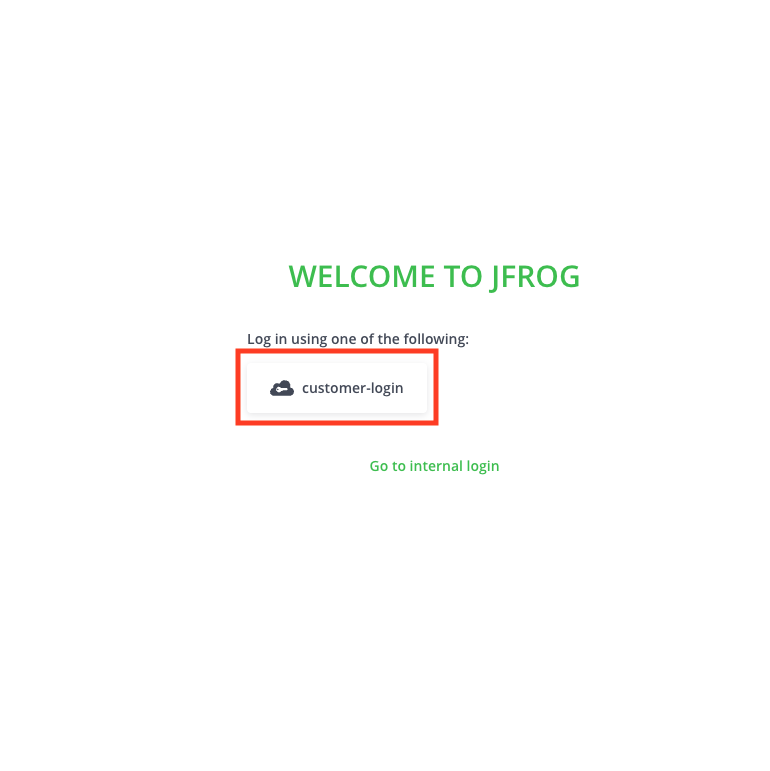
2. Sign in using the **sodot-auth** option
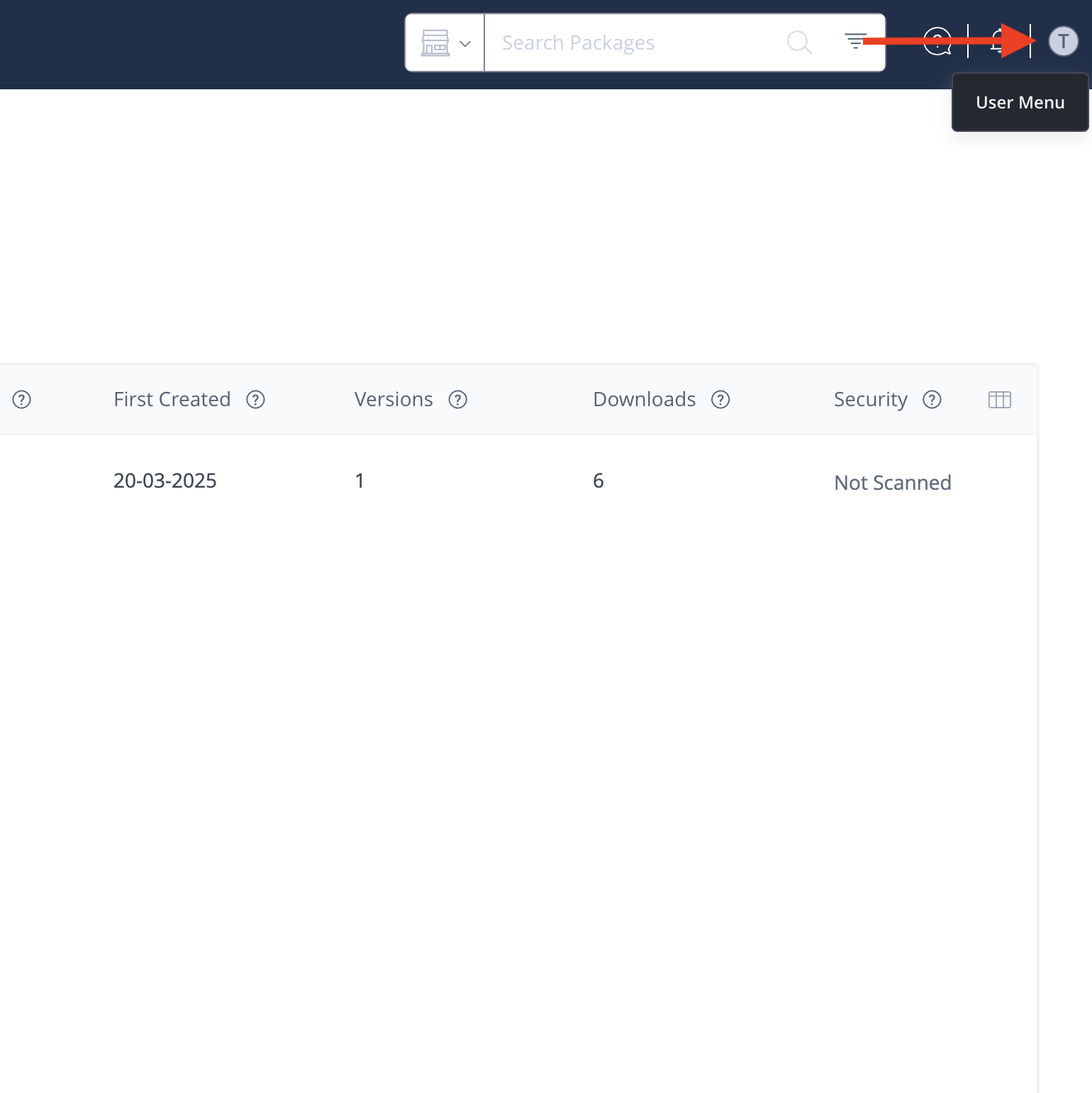
 3. Once logged in, navigate to the user menu in the top right corner of the screen and locate your **username**.
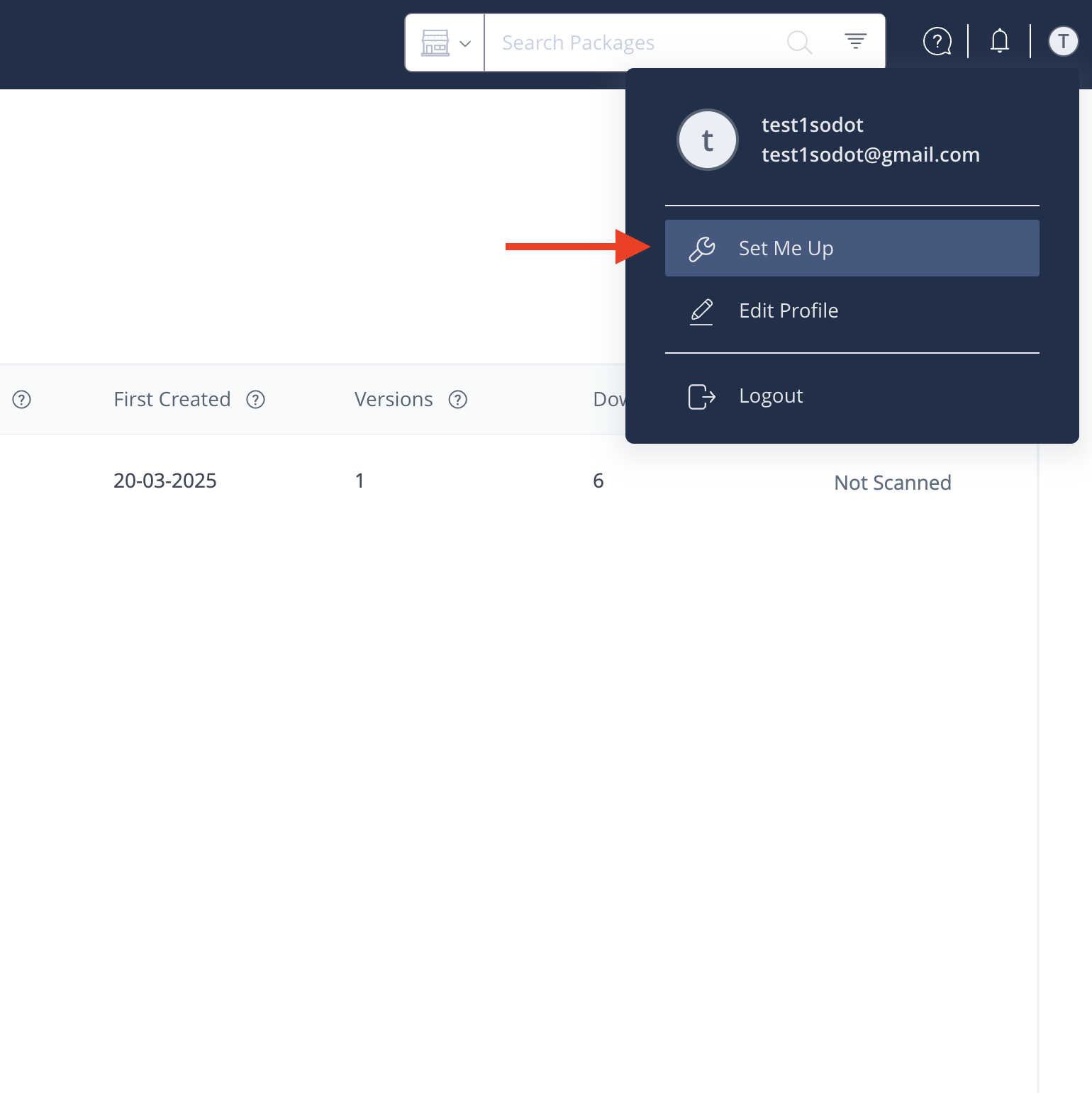
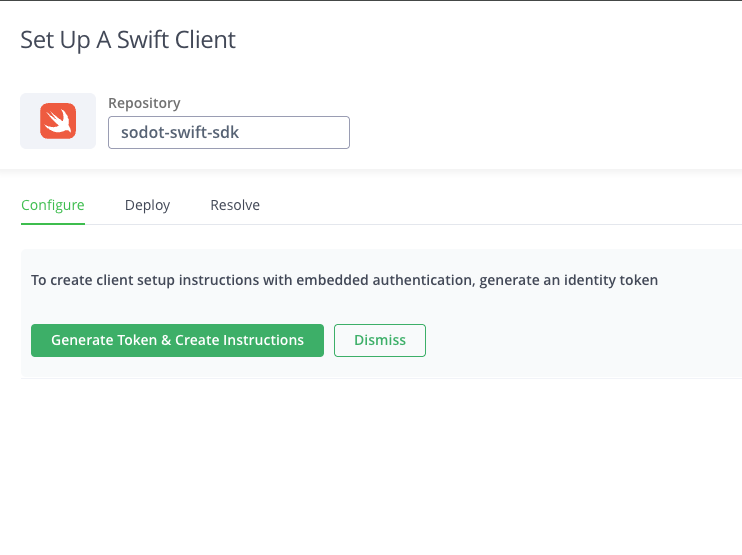
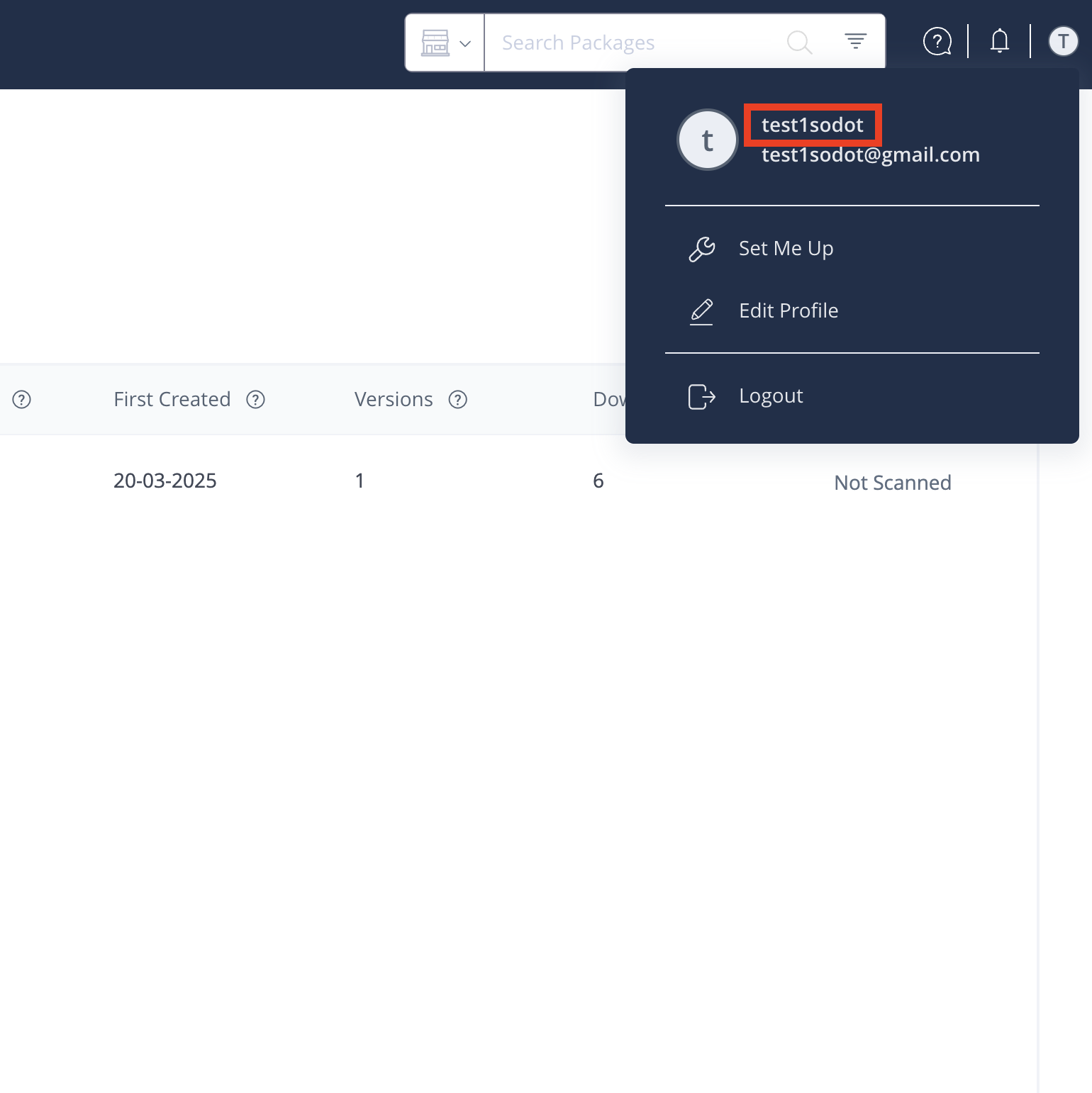 4. Click on **Set Me Up** → **Swift** → Select the **sodot-swift-sdk** repository.
 5. Click the "Generate Token & Create Instructions" button.
 6. Follow the steps under the "Configure" section. Additionally, login to the registry via the CLI using:
```bash
swift package-registry login https://repo.sodot.dev/artifactory/api/swift/sodot-swift-sdk
```
with your configured access token.
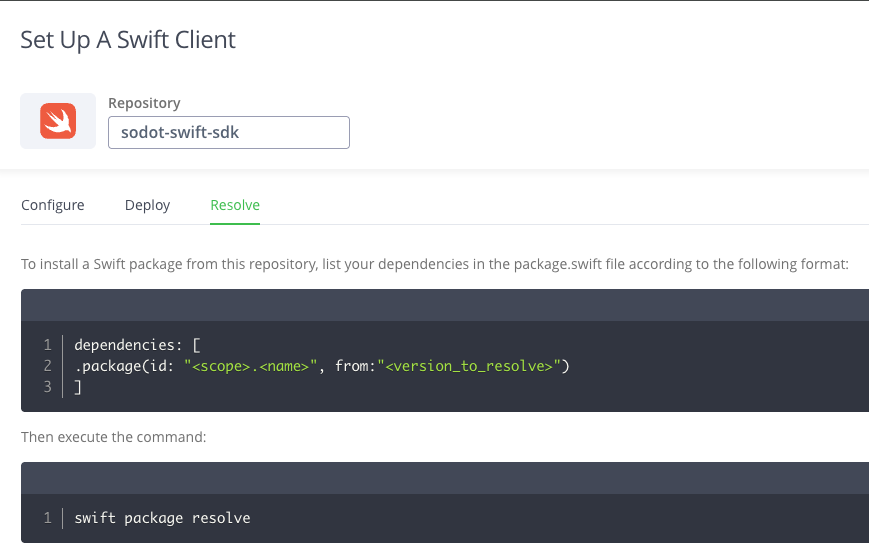
7. To resolve your dependencies, follow the steps under the "Resolve" section. For a more in depth installation guide, refer to the [Installation](/swift/installation) section.
6. Follow the steps under the "Configure" section. Additionally, login to the registry via the CLI using:
```bash
swift package-registry login https://repo.sodot.dev/artifactory/api/swift/sodot-swift-sdk
```
with your configured access token.
7. To resolve your dependencies, follow the steps under the "Resolve" section. For a more in depth installation guide, refer to the [Installation](/swift/installation) section.
 :::note
The token is valid for **one year**. Make sure to regenerate it before it expires to avoid service disruptions.
:::
For any further questions, contact the [Sodot team](mailto\:sdk@sodot.dev).
:::note
The token is valid for **one year**. Make sure to regenerate it before it expires to avoid service disruptions.
:::
For any further questions, contact the [Sodot team](mailto\:sdk@sodot.dev).